How to Accept a Migration Request
If a company admin wants to add your Feltiv account to their Enterprise Account, you will receive a migration invitation by email.
Open the email and click the "Take Action" button. Make sure you are logged in to your Feltiv account when you click the button.
Open the email and click the "Take Action"
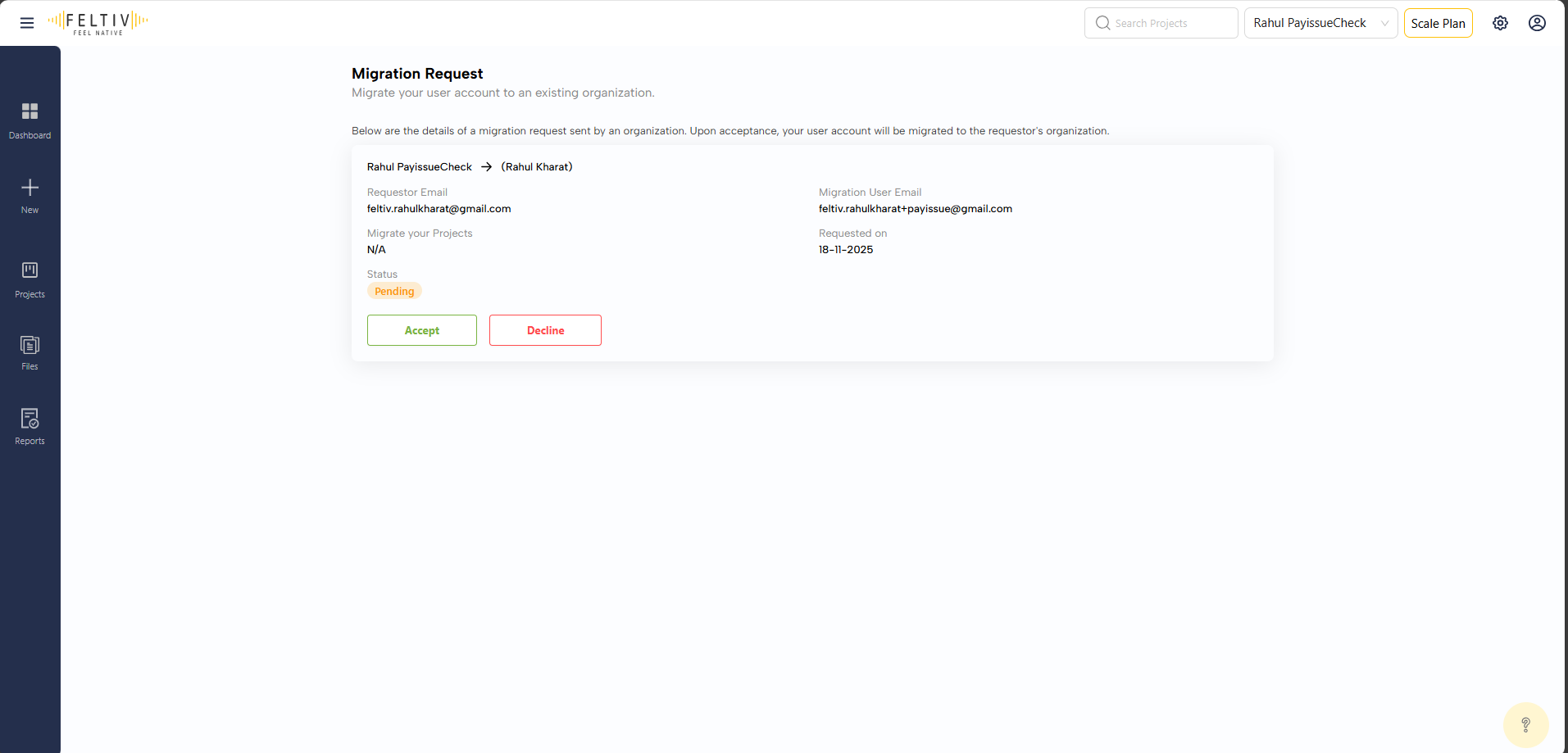
After clicking the ‘Take Action’ button, you will be redirected to the Migration Request page, where you can view the details of the request, including:
- Requestor Email
- Requested On
- Status
- Accept and Reject buttons
Review the information shown on the page.
To proceed with the migration, click the Accept button.
To proceed with the migration, click the Accept button.
Then enter "Accept" for accepting the migration request and click on "Accept" button. Once accepted, your account will be added to the requesting company’s team.
If you face any issues opening the link or accessing the request page, you can reach out to support@feltiv.com
For the steps the company admin follows to send this request, see the article "How to Migrate Users in Feltiv".
Related articles
- How to Migrate Users in Feltiv