Onboarding Journey in Feltiv

The onboarding journey in Feltiv is designed to make your start smooth and motivating—ensuring your account is set up according to your requirements.
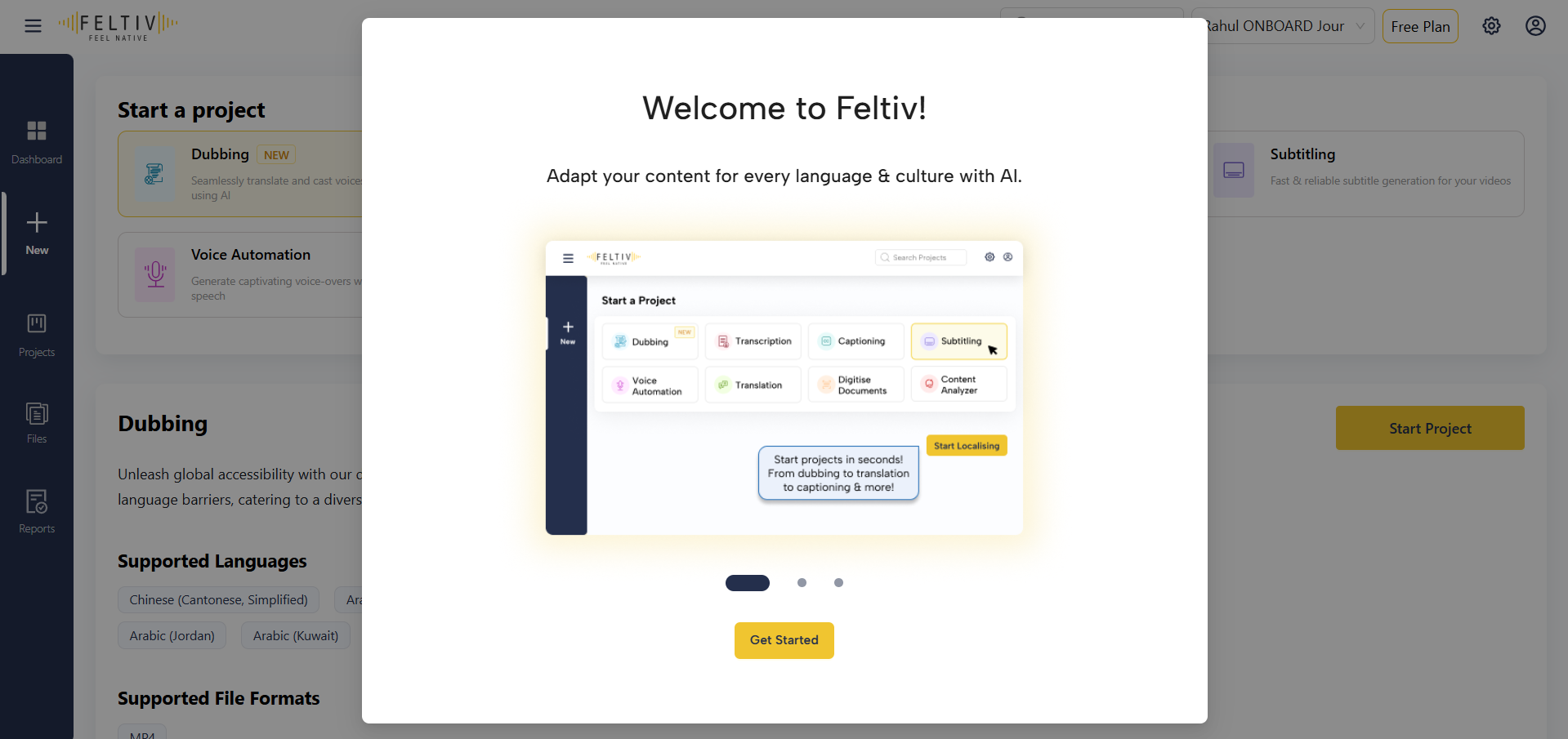
Once you sign up on Feltiv, you are greeted with the Welcome screen. You may click on the Get Started button to continue with the onboarding process.
First comes selecting your account type, where we understand your persona, which enables us to tailor your experience on Feltiv.
[[TO VERIFY - the account type names below (Individual Creator, Enterprise Customer) may not match the names shown in the current sign-up wizard (Freelance Localisation Expert and Localisation Agency are confirmed). Check the wizard and update the names. Delete this line afterwards.]]
This is a crucial step that lays the foundation for organising your teams and projects. Let's understand each Account Type:
1. Individual Creator: If you intend to use Feltiv in an individual capacity to localise your own content, this one is for you. This type of account lets you use all the functionalities of Feltiv, except for adding team members.
2. Freelance Localisation Expert: If you work as a localisation expert (e.g. Translator, Transcriber, Subtitling / Captioning Expert, Dubbing or Voiceover Artist, Proofreader) but in an individual capacity, this one's for you. Here, you get to leverage your skills by enrolling onto our Localisation Vendor Marketplace and get access to global clients and reach. In this type of account, you won't get the functionality to add team members.
3. Localisation Agency: If you work for a localisation agency or own a localisation agency that has its own team of localisation experts and works on multiple client projects, this one is the perfect fit. This account type lets add your team members on Feltiv, and take advantage of the project management tools and workflows. You also get the option to enrol your localisation firm onto our Localisation Vendor Marketplace as a Localisation Agency and expand your horizons.

You will be the administrator of your agency account. Furthermore, you can add other admins from the Teams menu.
Can only opt for a paid subscription plan if you select this account type
4. Enterprise Customer: If you work for an enterprise company or own a company that creates content, this one is for you. This account type lets add your team members on Feltiv, and take advantage of the project management tools and workflows. Additionally, you can also take advantage of the Localisation Marketplace, where you can find localisation agencies and freelancers who can help you check and authenticate the localised content on Feltiv, so that you don't have to look outside for any localisation vendors and your content stays safe inside Feltiv.
You will be the administrator of your Enterprise Company account. Furthermore, you can add other admins from the Teams menu.
Can only opt for a paid subscription plan if you select this account type
Once your workspace is set, you’ll move on to confirming your profile details. Here, in case you selected Localisation Agency or Enterprise in the previous step, you need to put your correct Organisation Name and Alias, so your account is personalised and ready to use. And don't worry, we don't use your mobile number to spam messages.
After completing your profile, you can join the Localisation Vendor Marketplace to expand your reach and connect with clients worldwide. The marketplace allows you to highlight your expertise, set your own rates, choose preferred language pairs, and showcase your work to build credibility with a verified badge and strong portfolio.
When ready, simply click on “Yes, I’m interested!” and then click Next to move forward.
After doing Opt-in for Localisation Vendor Marketplace, you’ll be prompted to select a plan that best fits your needs:
- Free – Ideal for trials and basic usage
- Starter – Perfect for individuals or small teams
- Scale – Designed for growing organisations
- Enterprise – Tailored for advanced, large-scale requirements
[[TO VERIFY - the Free plan is listed as selectable, but the text above says only paid plans are available for Agency and Enterprise accounts. Check which plans each account type can select in the live app and correct one of the two. Delete this line afterwards.]]
After selecting a plan, you will be prompted to the Billing Details section. The Billing Details section is where you provide all the necessary information required for billing and tax purposes. Completing this section ensures smooth processing of your payments and compliance with local regulations.
You will need to enter the following information:
- Billing Name – The name to be used for billing.
- Address Line 1 – The primary address for billing (mandatory).
- Address Line 2 – Additional address information (mandatory).
- Country – Select the country from the available list.
- State – Choose the relevant state for your billing address.
- City/District – Enter your city or district name.
- Pincode – Provide the correct postal code for accurate billing.
- GSTIN / Tax ID – Enter your tax identification number if applicable (optional).
[[TO VERIFY - Address Line 2 is described as mandatory. Check whether the billing form really requires it. Delete this line afterwards.]]
After filling in all the required fields, click on "Next" to continue.
Once you proceed, you will be redirected to Razorpay for completing the payment. Razorpay offers multiple payment methods, including:
- UPI
- Debit/Credit Cards
- EMI
- Net Banking
- Wallets
- Pay Later options
You can choose the option most convenient for you and complete the payment securely.
When your plan is activated, onboarding is complete. You’re now ready to create projects, upload content, collaborate with team members, and explore everything Feltiv has to offer. Click on "Start Exploring" to begin.
Related articles
- How to enrol as a vendor on the Feltiv Marketplace
- Feltiv Subscription Plans
- Adding credits in Feltiv